Features 22 Jan 2026
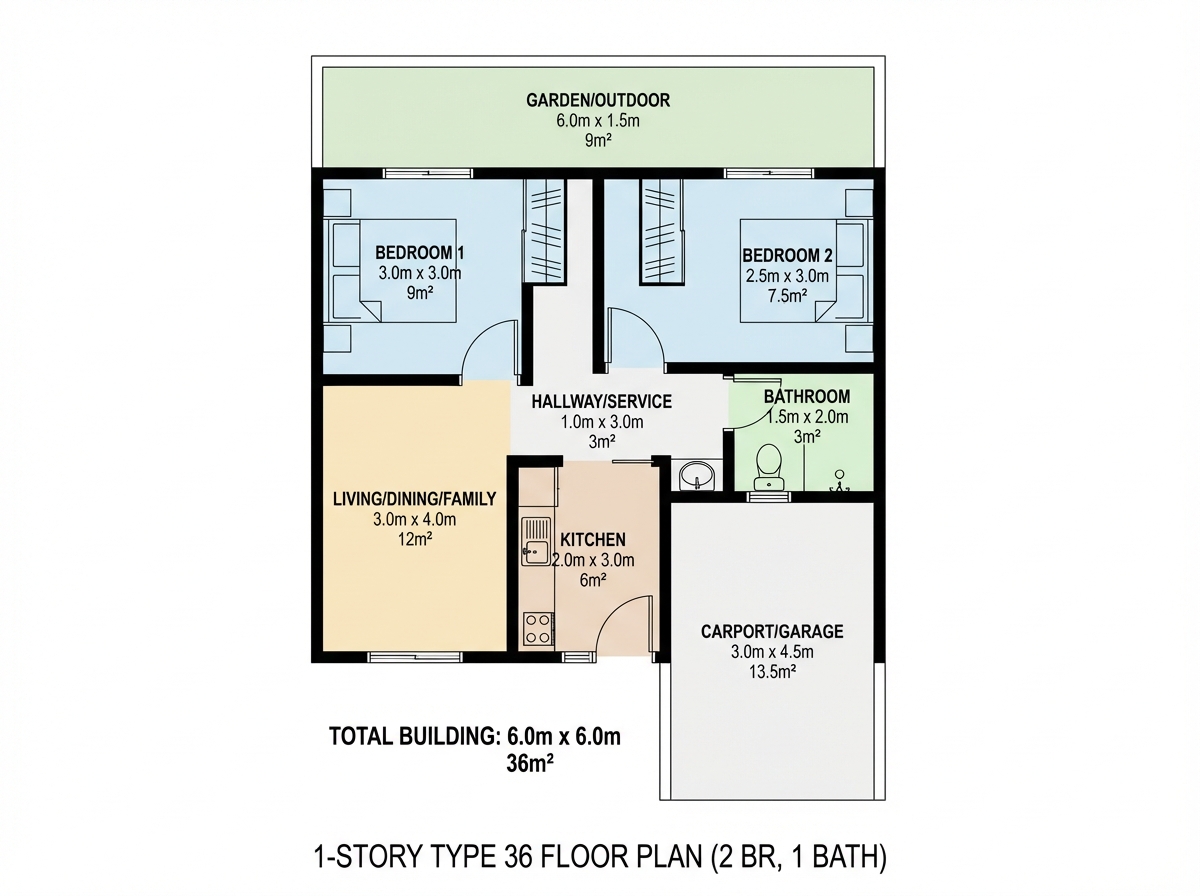
Feature 1: AI Floor Plan Generator
Create professional 2D blueprints from text, sketches, or strict dimensions automatically.
Mode: Generate Floor Plan (Map Icon)
Create architectural floor plans 2D blueprints from text, sketches, or strict dimensions.
Input Modes
This feature has 4 distinct sub-modes selectable at the top of the sidebar:
- Write Idea: Text-to-Floorplan. Describe what you want, and AI imagines it.
- Find Layout Idea: Select a style (e.g., "Minimalist") and let AI surprise you.
- Upload Sketch: Upload a napkin sketch or old blueprint to digitize it.
- Dimensions (Pro): Strict control. Define exact land and building sizes.
Step-by-Step Tutorial
- Select Mode: Click the Map Icon in the sidebar.
- Define Dimensions (Targeting "Dimensions" mode):
- Land Size: Enter Length (m) x Width (m). The AI will draw the property boundary.
- Building Size (Fl. 1): Enter the ground floor footprint area.
- Building Size (Fl. 2): Optional. Enter the 2nd-floor area if applicable.
- Property Context:
- Property Position: Choose the lot type (e.g., "Corner Lot", "Hook", "Regular"). This affects window placement.
- Room Counts: Set number of Bedrooms, Bathrooms, and Ensuite (Private) Bathrooms.
- Additional Ideas: In the text box, specify special rooms (e.g., "Garage for 2 cars", "Open Kitchen", "Void area").
- Generate: Click Generate Render.
Pro Tip
In "Upload Sketch" mode, you can upload a multi-page PDF. The AI will process every page in batch.
Read Next
SketchUp Alternative: How AI is Changing 3D Modeling for Beginners
Why you no longer need to learn complex 3D modeling to visualize stunning architecture.
Read Article →From Sketch to Blueprint: The Power of the AI Floor Plan Generator
How text prompts and simple doodles can instantly become professional 2D floor plans.
Read Article →